
This Guideflow will take you through the process of uploading CVs from Mercury to Allsorter to reformat them and then importing the finished file back to Mercury.
Once the integration has been completed, Allsorter will be available inside Mercury as a tab within each candidate profile.
Each Mercury user must access Allsorter from a candidate profile.
- Log in to Mercury.
- Go to Contacts.
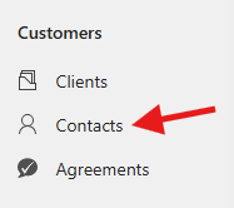
- Select the candidate you want to work with.
- Make sure there is at least one CV/resume uploaded to the candidate’s profile.
- On the candidate’s profile page, make sure the Mercury Contact dropdown option is selected right under the candidate name . Otherwise, the Allsorter tab will not appear.
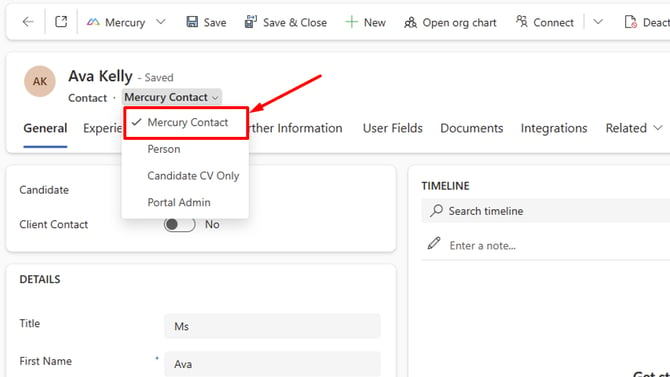
- Click Integrations in the main tab bar on the candidate profile.
- Select Allsorter from the sub-ribbon that appears. This may also appear within the main tab bar instead of "Integrations" if you only have the Allsorter integration enabled.
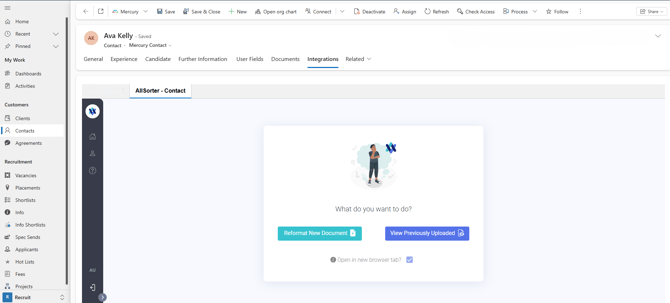
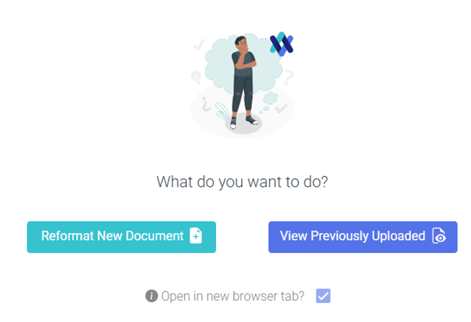
- Choose one of the available options:
-
- Reformat New Document
- View Previously Uploaded
Option 1: Reformat New Document
Use Reformat New Document when you want to send a new file from Mercury into Allsorter for formatting.
To do this:
-
- Select Reformat New Document.
- Choose the file you want to reformat.
- Click Continue.
Note: A file must already be uploaded to the candidate’s Mercury profile before you can reformat it through Allsorter.
Option 2: View Previously Uploaded
Use View Previously Uploaded when the candidate has already been sent to Allsorter and you want to continue working with an existing document.
To do this:
-
- Select View Previously Uploaded.
- Choose the candidate or document from the Allsorter dashboard by clicking in 'View'.
- Continue working with the previously uploaded file in Allsorter.
-
-
Note: Keep the Open in new browser tab option selected when opening Allsorter through Mercury. Allsorter will still remain connected to Mercury, but opening it in a new browser tab gives you more space and a clearer view when working on a CV/resume in Allsorter.
-
Allsorter intelligently extracts the information from the CV and you’ll see the candidate’s details in a split-screen editor, making it easy to review what’s been extracted and refine it fast.
- Please follow the Allsorter editing guide to understand how to reformat a resume within Allsorter.
-
Hit Preview to see the finished, client-ready resume — fully mapped into your branded template.
-
When you’re happy with the final result, click Import to Mercury to push the newly formatted resume back into the candidate’s Mercury record. You can also Export it to your local computer.

-
The file can be generated as a PDF or DOCX and you can customise the file name and suffix so versioning stays clear.
-
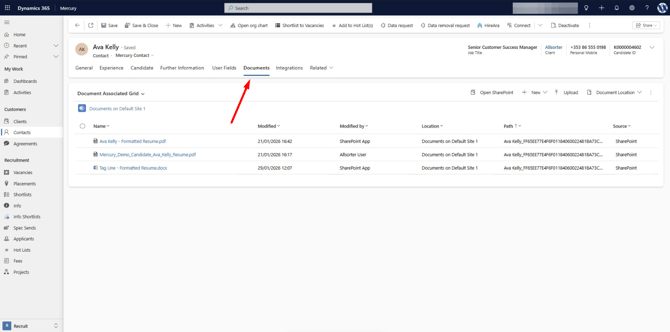
To view the new file in Mercury, return to the candidate record and open Documents.
-
Reformat your first document with Allsorter today!
Important notes
- Allsorter is accessed through the candidate profile in Mercury.
- A candidate must have a CV/resume uploaded in Mercury before you can use Allsorter for that candidate.
- The Mercury Contact option must be selected on the candidate profile.
- If users can access Mercury but cannot see Allsorter, they should confirm they are viewing a candidate profile with an uploaded file and that they have selected the correct contact option.