
The Mercury integration allows users to access Allsorter directly from a candidate profile in Mercury. Once the integration is active, users can reformat a new document straight from Mercury and import it back to Mercury once the reformatting process is finalised.
This setup requires action from both Mercury Support and the Allsorter Customer Success team.
In this guide, you will find:
How to integrate Mercury with Allsorter
Accessing Allsorter through Mercury
How users are added to the integrated account
Important: The integration cannot be completed by Allsorter alone. Mercury Support must provide some details first, Allsorter will then generate the API key, which allows Mercury Support to complete the final connection.
Integrating Mercury and Allsorter
Step 1: Contact Mercury Support
Contact Mercury Support and request the integration details required to connect Mercury with Allsorter.
You need to request the following details:
- Tenant ID
- Instance ID
Once Mercury Support provides these details, share them with the Allsorter Customer Success team using the support form.
Step 2: Allsorter completes the initial setup
Allsorter's Customer Success team will use these details to set up your account.
This includes:
- Creating your organisation in Allsorter.
- Adding the required Mercury integration details.
- Linking the Mercury integration to your Allsorter organisation.
- Generating an API key for the integration.
Once the API key has been created, the Allsorter Customer Success team will share it with you.
Step 3: Share the API key with Mercury Support
After you receive the API key from Allsorter, share it with Mercury Support.
Mercury Support will use this API key to finalise the connection between Mercury and Allsorter on their side.
Important: The integration will not be fully active until Mercury Support has completed this final step.
Accessing Allsorter through Mercury
Once the integration has been completed, Allsorter will be available inside Mercury as a tab within each candidate profile.
Each Mercury user must access Allsorter from a candidate profile by following these steps:
- Log in to Mercury.
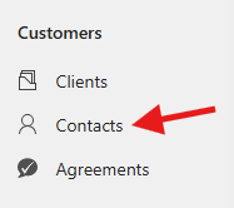
- Go to Contacts.
- Select the candidate you want to work with.
- Make sure there is at least one CV/resume uploaded to the candidate’s profile.
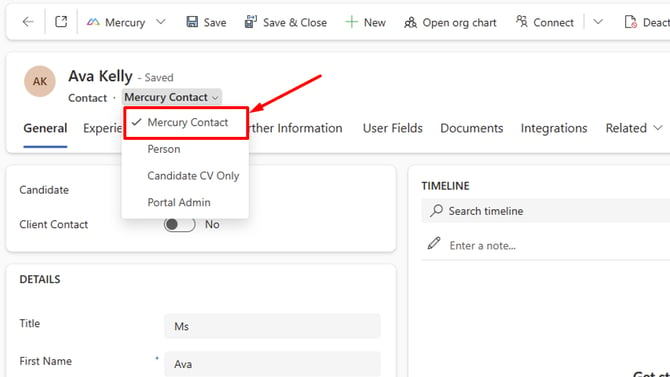
- On the candidate’s profile page, make sure the Mercury Contact dropdown option is selected right under the candidate name . Otherwise, the Allsorter tab will not appear.
- Click Integrations in the main tab bar on the candidate profile.
- Select Allsorter from the sub-ribbon that appears. This may also appear within the main tab bar instead of "Integrations" if you only have the Allsorter integration enabled.
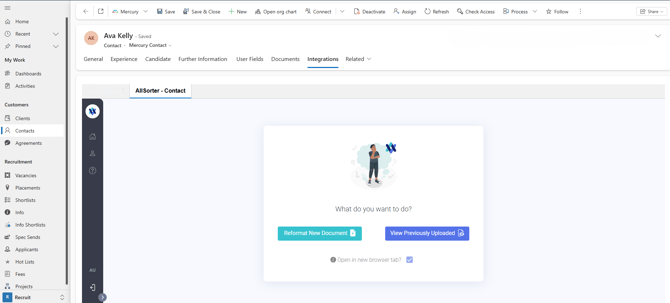
- Choose the file to reformat and follow the next steps. Learn how to import Mercury CVs to Allsorter here.
Admin: Adding users to the integrated account
Once the Mercury integration is active and you have available licences in your Allsorter account, users can access Allsorter directly through Mercury.
How user access works
- A new user logs in to Mercury, opens a candidate profile and selects the Allsorter integration.
- Allsorter automatically creates a new account for that user.
- The user takes up an available licence on your Allsorter subscription. Only Organization Managers do not take up a licence.
If a user cannot access Allsorter
- Ensure there is an available licence on your Allsorter subscription for each additional user.
- Contact Allsorter Customer Success to discuss your subscription if you need to add additional licences.
- Ensure the user has the "Mercury Contact" option selected in the candidate record.
Important: ATS-integrated accounts do not have an Add User button in Allsorter settings. Org admins should not try to add users manually from Allsorter. As soon as a new user comes into Allsorter through the integration, they will take up an available licence and can start reformatting.
Common questions
What information does Allsorter need to set up the Mercury integration?
Allsorter needs the Tenant ID and Instance ID from Mercury. You must request this from Mercury Support and share it with the Allsorter Customer Success team.
Who provides the API key?
The Allsorter Customer Success team generates the API key after the Mercury integration details have been added to your Allsorter organisation.
Who should the API key be shared with?
The API key must be shared with Mercury Support. Mercury Support uses it to complete the integration on their side.
Can Allsorter complete the full setup without Mercury Support?
No. Allsorter can complete the setup on our side, but Mercury Support must provide the Tenant ID and Instance ID and complete the final connection using the API key.
Where will users access Allsorter in Mercury?
Users will access Allsorter from a candidate profile in Mercury by selecting Integrations and then Allsorter.