
After activating your subscription with Allsorter, the next step is to connect your Tracker account with Allsorter. This integration allows users to send CVs directly from Tracker to Allsorter for reformatting.
In this guide, you will find:
- How to connect Tracker and Allsorter
- How to configure the integration in Tracker
- How users can access Allsorter through Tracker
- How users are added to the integrated account
Admin: Connecting Tracker and Allsorter Step 1: Contact Tracker Support
Before the integration can be configured, you must request the following details from Tracker Support:
- Your Tracker Account ID (Database ID)
- Your Tracker REST URL
Tracker Support will provide these details to you directly.
Step 2: Send the Information to Allsorter
Once you receive the information from Tracker Support, send the details provided by Tracker to support@allsorter.com.
Once setup has started, the Allsorter Support team will confirm the next steps with you.
Important
The Tracker integration setup is slightly more advanced than some other ATS integrations. Please read the steps carefully before starting.
If any step is unclear or not working as expected, please contact support@allsorter.com. The Allsorter Support team can arrange a short session to walk you through the setup process step by step.
Step 1: Open Integration Services
- Log in to Tracker.
-
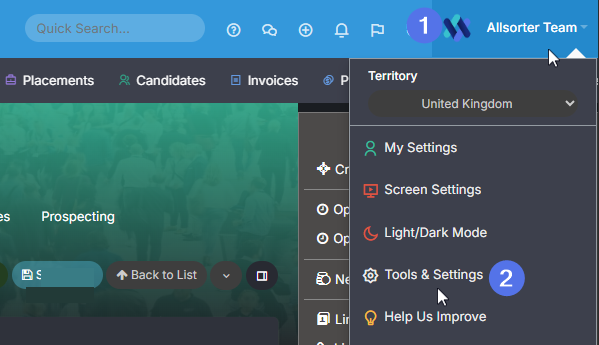
Open your profile menu in the top-right corner of the screen.
- Select Tools and Settings.
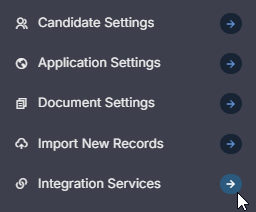
- In the left-hand menu, locate and select Integration Services under Application Settings.
- Click New Integration.
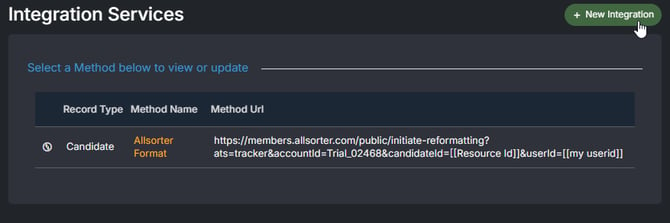
Please note: If you cannot see Integration Services, contact Tracker Support and request the required permissions for your account.
Step 2: Create the Integration
Integration Name
In the Integration Name field, enter Allsorter. This will make the integration easier for users to identify and access within Tracker.
Step 3: Configure the Method URL
In the Method URL field, add the following URL exactly as shown below:
https://members.allsorter.com/public/initiate-reformatting?ats=tracker&accountId=ACCOUNTID&candidateId=[[Resource Id]]&userId=[[my userid]]Do not save the integration yet. Some placeholder values still need to be replaced.
Step 4: Replace the User ID Placeholder
Inside the URL, locate:
[[my userid]]
Delete the entire placeholder, including the brackets.
Then:
- Click Insert Field
- Search for:
- My User ID
- Select the field to insert it into the URL

Important: Do not manually type the User ID field. Always use the Insert Field option provided by Tracker.
Step 5: Replace the Candidate ID Placeholder
Inside the URL, locate:
[[Resource Id]]
Delete the entire placeholder, including the brackets.
Then:
- Click Insert Field
- Search for:
- Resource ID
- Select the field to insert it into the URL
Important: Do not manually type the Resource ID field. Always use the Insert Field option provided by Tracker.
Inside the URL, locate:
ACCOUNTIDDelete ACCOUNTID and replace it with the exact Account ID provided by Tracker Support.
Step 7: Save the Integration
Once all placeholder values have been replaced correctly, save the integration.
If the integration does not work correctly after saving, contact and include screenshots of your integration setup where possible.
Accessing Allsorter Through Tracker
Once the integration has been completed, users will be able to access Allsorter directly from Tracker.
To access Allsorter through Tracker:
- Open a candidate profile in Tracker.
- Click the Actions menu on the right-hand side.
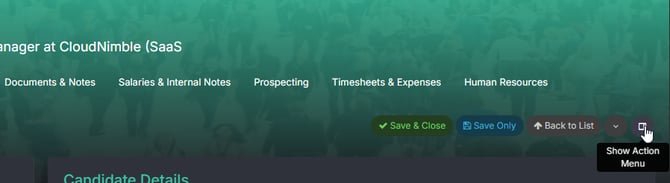
- Scroll through the available actions until you find Allsorter.
- Click Allsorter.
This will open the Allsorter split-screen view within Tracker, allowing you to begin reformatting the candidate’s resume.
Please note: Ensure the candidate profile has at least one resume or CV attached before launching Allsorter.
Please follow the Allsorter Basics guide to understand how to reformat a resume within Allsorter.
Admin: Adding Users to the Integrated Account
Once the Tracker integration is active and there are available licences on your Allsorter subscription, users can begin accessing Allsorter through Tracker.
Users do not need to be manually added through Allsorter settings.
How User Provisioning Works
- The user logs into Tracker.
- The user opens Allsorter from the candidate profile.
- Allsorter automatically creates the user account.
- The user takes up an available licence and can begin reformatting resumes.
ATS-integrated accounts do not have an Add User button inside Allsorter settings because users are automatically provisioned through the ATS integration.
Important:
Ensure your subscription has enough available licences for all users who need access to Allsorter.
If you require additional licences, please contact your Customer Success Manager or email .
Onboarding with Allsorter Customer Success
Once the integration is complete:
-
A CS agent will deliver a live onboarding session to walk you through system features, answer questions, and demonstrate best practices.
-
This session ensures all users are fully equipped to get started with Allsorter.